Minecraft, the wildly popular block-building game, offers a vast canvas for creativity and exploration. However, the real magic begins when you start exploring the world of Minecraft mods. These user-created modifications or “mods” can transform your game, adding new features, gameplay mechanics, and even entirely different dimensions.
Whether you’re looking to enhance your Minecraft experience with new creatures, biomes, or tools, or simply spice up your gameplay, mods are the way to go. In this comprehensive guide, we’ll walk you through the process of finding, downloading, and installing Minecraft mods, ensuring you have everything you need to take your game to the next level. So, grab your pickaxe and let’s get started!
Overview of Minecraft and the role of mods
Minecraft, at its core, is a game of limitless possibilities. Players can build structures, explore vast landscapes, and engage in combat in a unique, blocky universe. But where Minecraft truly shines is in its capacity for customization – and this is where mods come into play. Mods, or modifications, are additions to the game created by its passionate user community.
They can range from simple quality of life improvements, like map enhancements and better inventory management, to complete game overhauls that introduce new creatures, biomes, and even storylines. With mods, the already vast world of Minecraft expands exponentially, providing a more personalized and immersive gaming experience. Whether you’re a seasoned veteran or a newcomer to the world of Minecraft, mods offer a fresh, exciting way to explore and create in this ever-expanding game.
Preparation Before Mod Installation
Before you dive into the world of mods, there are a couple of important steps you need to take to ensure a smooth modding experience. First and foremost, make sure you’re running the latest version of Minecraft. Mods are typically created for specific versions of the game, and using an outdated version could lead to crashes or incompatibilities. You can check for updates through the Minecraft Launcher, which will automatically download and install the latest version of the game.
Another crucial step in the preparation process is backing up your saves. Modding can sometimes be a risky business, and there’s always the chance that something could go wrong. To safeguard your progress, make a copy of your save files before installing any mods. You can find your save files in the “saves” folder in your Minecraft directory.
By taking these precautions, you can ensure a seamless modding experience, protecting your game while unlocking new and exciting possibilities.
Choosing the Right Mod
Where to Find Reliable Mods
Once you’ve prepared your game for mod installation, the next step is to find the mods you want to install. There are numerous online platforms where Minecraft mods are shared and discussed. Some of the most reliable and widely used include the Minecraft Forum, CurseForge, and Planet Minecraft. These sites offer a vast selection of mods, each with user ratings and reviews to help you gauge their quality and compatibility.
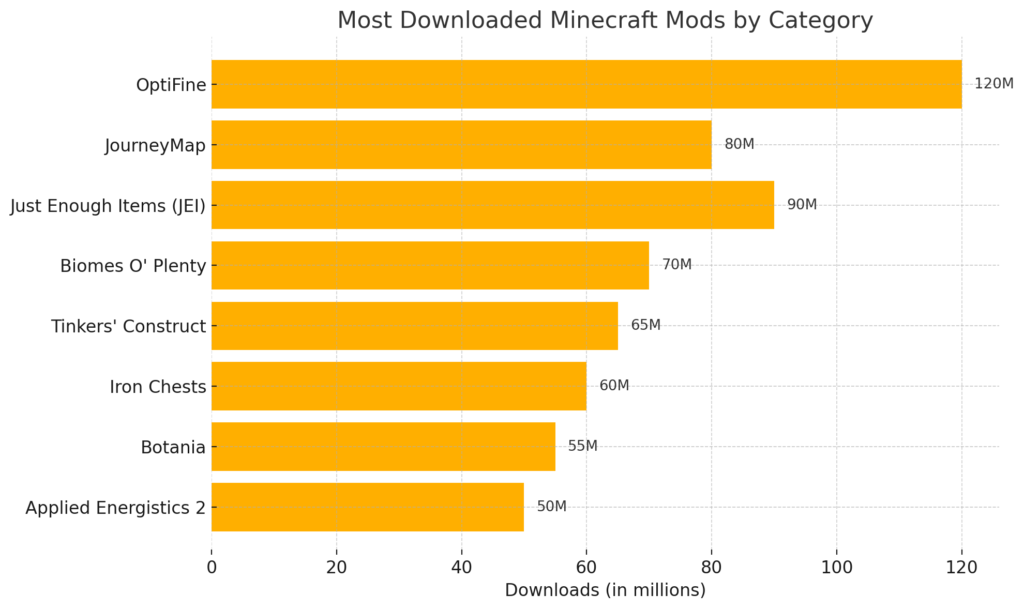
Always be sure to download mods from these trusted sources to avoid the risk of downloading malicious files. Also, read the mod descriptions and user reviews thoroughly to ensure the mod is compatible with your version of Minecraft and doesn’t clash with other mods you may have installed. With careful selection and a bit of research, you can find the perfect mods to enhance your Minecraft experience.
Basics of choosing a mod that suits your gameplay
Choosing a mod that suits your gameplay depends largely on what you’re hoping to achieve. Are you looking to add new challenges and quests, incorporate new creatures and biomes, or maybe you’re after a complete transformation of the game’s visual aesthetic? Deciding on your gameplay goals is the first step in choosing a suitable mod.
Consider how the mod will affect your gaming experience. Some mods are designed to enhance the survival aspects of the game, adding realism and difficulty, which would be ideal for those seeking a challenge. On the other hand, if you enjoy the building and crafting aspects of Minecraft, you might want to consider mods that add new materials and tools.
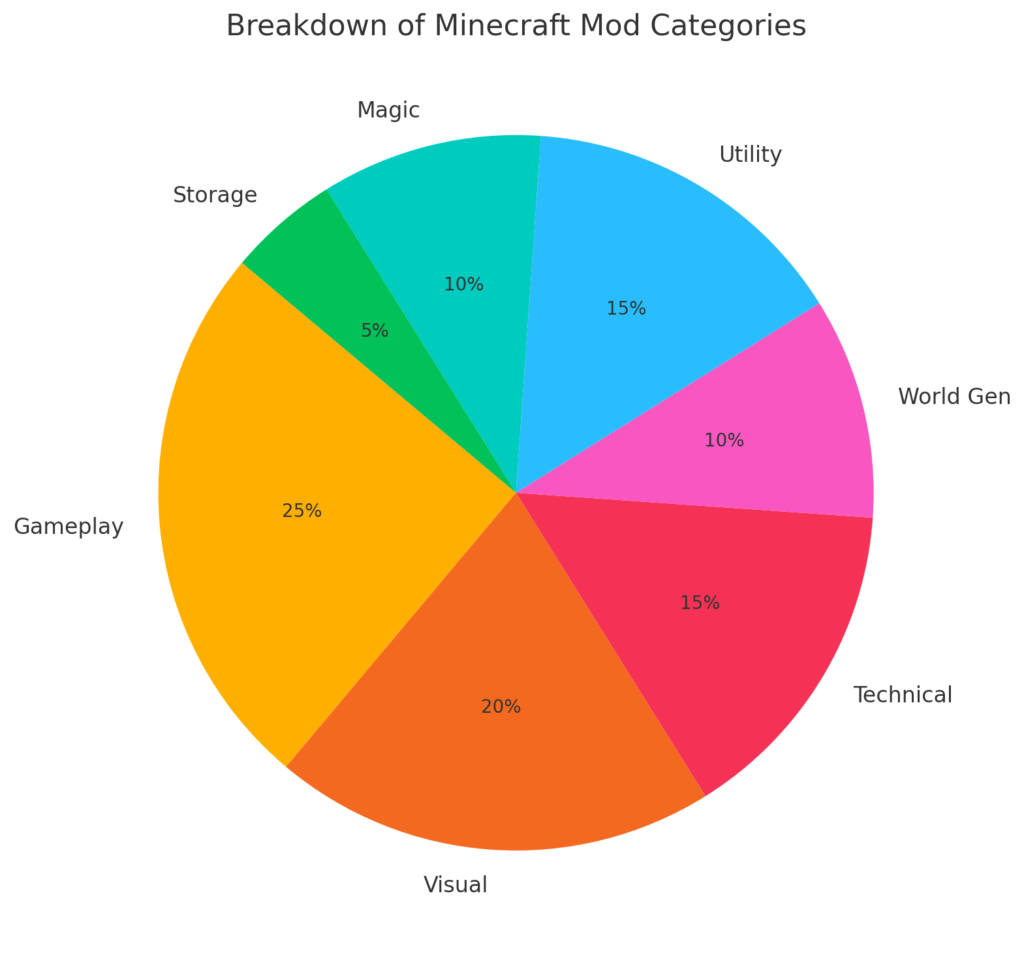
Also, consider the complexity of the mod. Some mods are fairly straightforward and easy to use, making them suitable for beginners. Others are quite complex, requiring a deep understanding of the game mechanics, and are more suitable for experienced players.
Remember to pay attention to the mod’s compatibility with your Minecraft version and other installed mods to avoid any conflicts. Lastly, always read user reviews and ratings to get an idea of the mod’s quality and functionality.
Taking the time to carefully consider these factors will help ensure you choose the right mod to enhance your gameplay and make your Minecraft experience truly your own.
Minecraft Mod Compatibility Calculator
Installing Minecraft Forge
Steps to Install Minecraft Forge
Before installing any mods, you’ll need to install Minecraft Forge. Forge is a modding tool and platform that allows mods to be installed and run on Minecraft. Here’s a step-by-step guide on how to install Forge:
- Visit the Minecraft Forge website. Here, you’ll find a variety of Forge versions. Choose the version that matches your Minecraft version and click on the “Installer” link.
- After downloading the installer, locate the file in your downloads folder and open it. This will bring up the Minecraft Forge installer.
- In the installer window, make sure “Install client” is selected, then click “OK.”
- The installer will automatically find your Minecraft folder and install Forge. Once the installation is complete, a message will pop up saying “Successfully installed client profile Forge for version Forge (version number) into launcher and grabbed (number) required libraries.”
- Open the Minecraft Launcher and select the “Forge” profile. To do this, click on the arrow next to the “Play” button, and select “Forge” from the dropdown menu.
- Click the “Play” button. Minecraft will start with the Forge profile, and you’ll see a “Mods” option on the main menu, which indicates that Forge has been successfully installed.
How to check if Forge is installed correctly
Checking if Forge is installed correctly is simple and straightforward. After following the steps of Forge installation, navigate to the Minecraft main menu. You should see a new “Mods” button in the main menu. Click on it, and if Forge is installed correctly, it will open up a new screen showing all the installed mods.
Note that at this point, Minecraft Forge itself should appear in the list. If you see these indications, it means that Forge has been successfully installed. If not, it’s best to revisit the installation steps or seek assistance from online Minecraft modding communities.
Mod Installation Process
Steps to Install a Minecraft Mod
Mod installation in Minecraft is a process made simple and straightforward by the use of Minecraft Forge. Once you’ve installed Forge and found the mods you want to use, follow these steps to install a Minecraft mod:
- Download the Mod: Choose a mod from a trusted source like the Minecraft Forum, CurseForge, or Planet Minecraft and download it. Ensure that the mod is compatible with your version of Minecraft and Forge.
- Locate the Mod file: Navigate to the Downloads folder on your computer and find the mod file, which should be a `.jar` or `.zip` file.
- Move the Mod file to the Minecraft Mods folder: Cut or copy the mod file. Then navigate to the Minecraft directory (usually located at `C:\Users\[Your User Name]\AppData\Roaming\.minecraft\mods` on Windows and `~/Library/Application Support/minecraft/mods` on Mac). Paste the mod file into the “mods” folder.
- Launch Minecraft with Forge: Start Minecraft through the Minecraft Launcher, selecting the Forge profile from the dropdown menu next to the “Play” button.
- Check the Mods list: When Minecraft starts, click on the “Mods” button in the main menu. The mod you installed should be listed here, indicating that the mod has been successfully installed.
That’s it! You’ve installed a mod. Now all that’s left is to load up a world and see the changes the mod makes to the game. Remember, some mods may require additional setup or in-game configuration, so be sure to check the mod’s page for any extra instructions.
Troubleshooting Common Problems
Troubleshooting Common Problems
While the mod installation process with Minecraft Forge is generally smooth, you may occasionally encounter issues. Here are some common problems and their solutions:
- Minecraft Crashes on Startup: This usually implies there’s a conflict between mods or a particular mod isn’t compatible with your version of Minecraft. Try removing the mods one by one to identify the problematic mod. Once you’ve found it, check if there’s an updated version compatible with your Minecraft version.
- Missing Mods Button: If the “Mods” button doesn’t appear on the Minecraft main menu, it’s likely that Forge isn’t correctly installed. Revisit the Forge installation steps to ensure you’ve followed them correctly.
- Newly Installed Mod Isn’t Showing Up: This could be due to a conflict with another mod, or the mod file may not have been placed in the correct directory. Ensure the mod is in your “mods” folder and is compatible with the other mods and your Minecraft version.
- Gameplay Issues After Mod Installation: Some mods can alter gameplay significantly. If Minecraft behaves unexpectedly, check the mod’s documentation for any changes it might make. If the issue persists, consider uninstalling the mod.
Enhancing Your Minecraft Experience
In conclusion, modding your Minecraft game is an excellent way to enrich and personalize your gaming experience. Through the installation of mods, you can introduce new functionalities, items, creatures, and worlds that vastly surpass what is available in the base game. Mods can revamp your gameplay, making it more exciting, challenging, and tailored to your preferences.
They are a testament to the vast and creative Minecraft community, where individuals channel their creativity into crafting unique mods that cater to a myriad of playstyles and interests. Remember, while the process might seem daunting at first, Minecraft Forge has simplified the mod installation process, and the joy of discovering the new possibilities each mod introduces to your game is well worth the effort. Happy modding!